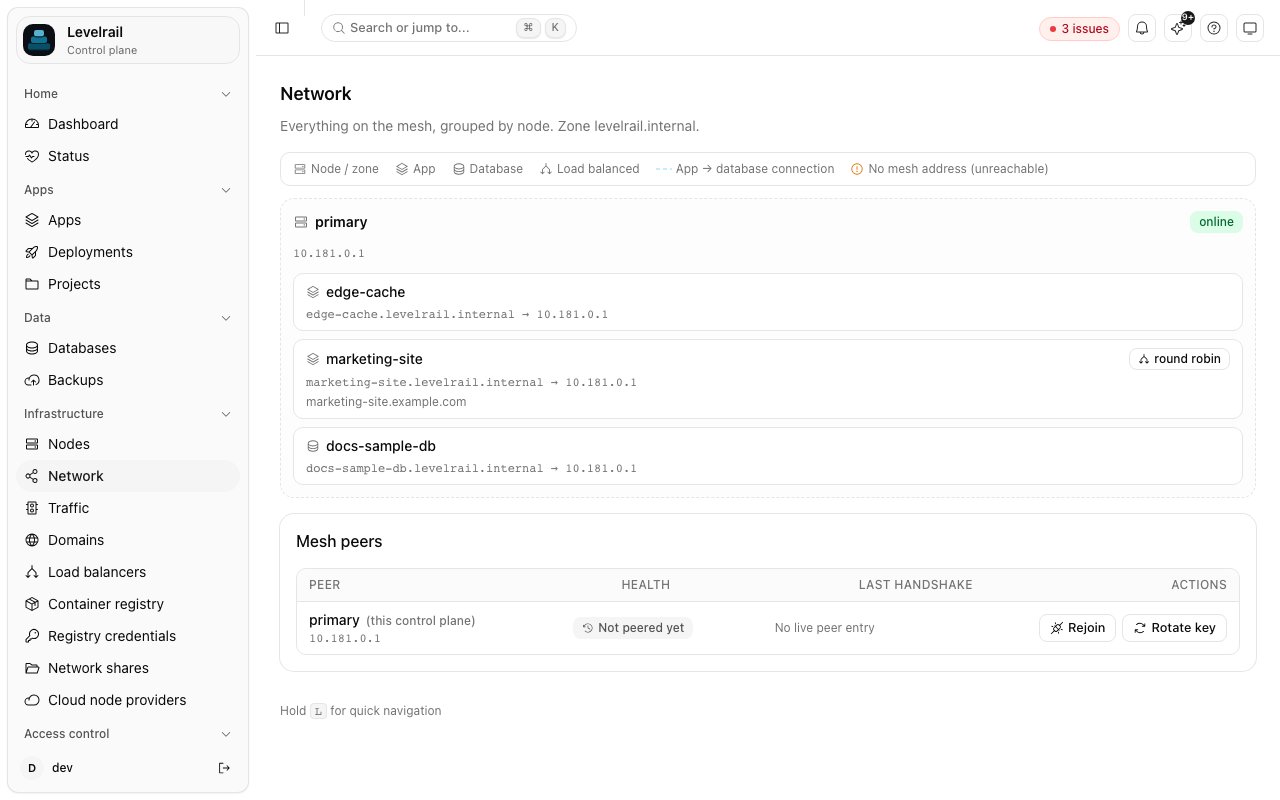
Read the Network page, how this server and nodes group into cards, how to turn the mesh on, and what the connection and reachability notes mean.
The Network page shows every node, app, database, and load-balanced service on the mesh at once, grouped by node, with a note under each app for the database it connects to. It is read-only and built from data the dashboard already has, so it needs no configuration. Find it under Infrastructure > Network.
The first card is always This server (control plane), with its hostname and address. Apps and databases with an empty placement, or placed on the control plane’s own node, are listed there, so a single server shows one card and no warnings. Every other enrolled node is its own card, labeled with the node’s optional Region field (set on the node’s detail page; free text) or its name.Resources placed on a node ID the control plane does not know (for example, a deleted node) land in an Unplaced card that names the stale node IDs, instead of being dropped. Move them to this server from the app or database, or re-add the node.A node card’s header also shows the node’s status (online, offline, pending) and a separate Cordoned badge when the node isn’t schedulable, plus its mesh address or “Not on the mesh yet” when it has none.Each resource row shows its internal DNS name (with a copy button) and, for an app, its port. With the mesh off the row carries a neutral local tag. The summary row above the cards shows servers, mesh state, the internal zone, and the resource count.
The Mesh networking card shows whether the mesh is off, on, waiting for a restart, or failed to start, with a readiness checklist and an Enable mesh button (administrators only). See Multi-node for what each check means and the CLI (levelrail-cli network mesh status|enable|disable). The API is GET and PUT /api/v1/mesh/settings.The Network page also has a Restart control plane button (administrators only), used when the mesh is waiting for a restart. The CLI equivalent is levelrail-cli system restart --wait, see CLI reference.
An app row shows Connects to <database> whenever the app has a connection to it, from either the connections feature or the older single-attachment flow. Both are combined here, so this view reflects every app-to-database link regardless of which mechanism created it.When the mesh is on, an app or database with no mesh address shows a “No mesh address” warning: it exists in the desired state but the mesh reconciler hasn’t given it an address yet, so any cross-node connection to or from it will not resolve until that changes. A remote app also needs a healthy mesh path before the control plane’s ingress can serve its domains: see Routing to apps on remote nodes.
App / Database: a deployed app or managed database, placed under the node it runs on.
Load balanced: a service the reconciler is load-balancing across its own replicas (this platform balances a service’s own replicas, not multiple distinct backends).
Connects to: a note under an app for each database it connects to.
No mesh address: the mesh is on but the resource has no mesh address yet. Never shown while the mesh is off.
local: the resource is on this server and reachable directly.
levelrail-cli nodes topology prints the same summary as a table, and --json prints the raw response. The API is GET /api/v1/network/topology (read ability), documented in the API reference.


 Get started
 How-to guides
 Reference
 Concepts
 Self-host gallery
 Appendix