

 Get started
 How-to guides
 Reference
 Concepts
 Self-host gallery
 Appendix


internal/ingress) and drives it through its admin API, not a hand-written Caddyfile. Config comes from the app specs the reconciler already knows about, so there is no caddy binary, no separate proxy container, and no way for ingress config to drift from desired state. The reasoning is in ADR 005 and the comparison.
What this covers
Walkthrough: your first domain
This assumes the control plane is running and an app is deployed (see Getting started).1
Point DNS at your server
Create an A record (AAAA for IPv6) for the domain pointing at the server’s public IP, then check it from a machine outside your network:
domains check reports whether the domain currently resolves to this control plane’s advertised address.2
Add the domain to your app
- Dashboard
- CLI
- app.yaml
Open the app’s Domains tab and add the domain inline. No redeploy is needed.
3
Open ports 80 and 443
Open them in your cloud firewall,
ufw or iptables, or re-run the installer with LEVELRAIL_CONFIGURE_UFW=1 ./install.sh. See Firewall.4
Get a trusted certificate
By default the domain is served over HTTPS with a self-signed certificate, so browsers warn. For a trusted one, enable real ACME (see TLS) and follow the ACME verification runbook.
5
Test it
Infrastructure > Domains lists every domain across every app with its certificate status, plus read-only badges for WAF, redirect, maintenance mode and basic auth. Edit those settings on the owning app’s Domains tab.
How domain routing actually works
When you deploy, the control plane builds a Caddy route that matches incoming requests byHost header and reverse-proxies them to the service’s container. Static sites (build.type: static) skip the container and are served by Caddy from disk. Every request to a configured domain goes through this chain:
Setting up DNS
Create an A record (or AAAA for IPv6) pointing at your server’s public IP address. DNS resolution happens before any request reaches your server, so this is no different from any other platform. Once it resolves and the app is deployed, Caddy starts routing and issuing certificates (depending on your TLS configuration). No manual reload is needed. DNS changes usually appear within minutes but can take a few hours depending on the record’s TTL.Managing DNS records from the dashboard
If you have connected Cloudflare DNS or Route53 DNS (see Wildcard domains), a domain’s Domains tab also gets a DNS records panel: the A/AAAA/CNAME/TXT/MX/SRV/CAA records in that domain’s zone, listed, added, edited and deleted without leaving the dashboard, each with a live resolved/pending/mismatch check against its configured value. It reuses the same provider credentials as wildcard ACME, so no separate API token is needed. NS and SOA records are read-only (provider-managed) and never appear.The zone shown is a best-effort guess, the domain’s last two labels (
app.example.com becomes example.com). That is wrong for multi-label public suffixes like .co.uk; the panel always echoes the exact zone it queried.Guided setup: domain, DNS, port, certificate
The Guided setup button on an app’s Domains tab walks one domain through four checks before anything is saved:- Domain. Pick the environment it belongs to, and optionally route the
wwwor apex twin with a redirect to the one you typed. - DNS record. The exact A, AAAA or CNAME record to add, re-checked live.
- Container port. Whether the running container really listens on the app’s port. This reads the container’s socket table, so it needs exec access enabled for the app; without it the step says it could not verify.
- Certificate. Which challenge applies. HTTP-01 needs the internet to reach port 80 on this server. If this server sits on a private (LAN, NAT, NAS) address, or the domain is a wildcard, only DNS-01 can work, and the step says which provider is connected (Cloudflare, Route53 or none) and where to connect one.
domains check.
domains connectivity dials this server’s advertised address from the control plane. It cannot prove a port is open to the whole internet, but a private address is decisive: HTTP-01 cannot work there.
One app, one domain set per environment
An app can carry a separate set of domains for each environment, so you do not duplicate the app for dev, UAT and production. The app routes the set of the environment it is tagged with. An environment without its own set falls back to the app’s default domains, so existing apps keep working unchanged.--env takes an environment id, name or kind. In the dashboard, the Domains tab shows one tab per environment, with the active one marked. Moving the app to another environment switches the routed set on the next reconcile. A hostname still belongs to exactly one app across all sets.
Cloning an environment can copy every app’s domain sets under rewritten hostnames, since a hostname cannot be shared:
--domain-prefix uat. instead to prepend a label to every copied hostname.
The dashboard’s own domain
Infrastructure > Domains sets the control plane’s ownprimary_domain, the one the dashboard itself is reachable at, separate from any app’s domains:. Give it a dedicated subdomain such as console.example.com or panel.example.com rather than reusing one an app already serves.
Setting the primary domain to a domain an app already owns is rejected with a 409 naming the conflicting app.
Zero DNS setup: sslip.io hostnames and one-click HTTPS
sslip.io is a public DNS service that resolves any dash-encoded IP straight to that IP, so134-209-118-96.sslip.io is 134.209.118.96 with no record to create and nothing to wait for. A fresh install uses it to get working HTTPS URLs with no DNS setup at all.
One-click HTTPS for the dashboard
The Domains page opens with an Enable HTTPS card (the setup wizard’s domain step shows the same card first). Enter a contact email and click the button. The control plane:- sets the dashboard’s primary domain to
<dashed-ip>.sslip.io, - turns on real ACME issuance and asks Let’s Encrypt for a certificate over the HTTP-01 challenge,
- shows
pending, thenissuedwith the issuer and expiry, and - once you are looking at the dashboard on that https address, saves it as the dashboard URL (sign-in over plain HTTP is then refused).
- CLI
- API
--staging to use the Let’s Encrypt staging CA while debugging.example.com, .test, .invalid, .localhost and similar reserved names are rejected because Let’s Encrypt refuses them. The same applies to the primary domain when real ACME is on.
Ports 80 and 443 must be reachable from the internet. If issuance fails for any reason, the site keeps answering over HTTPS with a certificate signed by the platform’s own CA instead of dropping the handshake, and the card shows the certificate authority’s error with a hint:
The public CA is retried each time the fallback certificate renews, every
APP_INGRESS_FALLBACK_CERT_LIFETIME (default 6h), and immediately when you run the enable command again with a corrected email.
Staging, rate limits and switching CA
Staging, rate limits and switching CA
Tick “Test with Let’s Encrypt staging first” (or pass
--staging) to use the staging CA: certificates are not browser trusted, but there are no meaningful limits. Production enable attempts are capped at 5 per hour per control plane (APP_ACME_MAX_ATTEMPTS_PER_HOUR) so a misconfiguration cannot burn Let’s Encrypt’s failed-validation limit; staging is never capped.Switching CA (staging to production, or from the internal issuer to ACME) drops the certificates stored for the previous issuer so they are re-issued. Without this, Caddy keeps serving the old still-valid certificate and never asks the new CA.
The server’s public address
At first start the control plane works out its own public IP, in this order:APP_PUBLIC_HOST, if set (an IP, or a hostname if you only need it for DNS checks). This always wins.- Otherwise it asks public what-is-my-IP services (
api.ipify.org,icanhazip.com,ifconfig.me) and takes the first public answer. Private, loopback and link-local answers are ignored.
from APP_PUBLIC_HOST, detected, detection disabled, not found), and levelrail-cli settings ingress get prints it as public_host.
Automatic hostnames for apps
Every app deployed withoutdomains: gets:
- It appears on the app’s Network tab, in
levelrail-cli apps network <name>, inlevelrail-cli domains list(sourceautomatic) and inGET /api/v1/domains("automatic": true). - It disappears the moment you add a real domain. A configured domain always wins.
- It is generated each pass and never stored on the app, so per-domain features (basic auth, WAF, BYO certificate, maintenance mode) do not apply to it. Add a real domain for those.
- Toggle it per server (not per app) with the Automatic app hostnames setting on the Domains page, or
levelrail-cli settings ingress set --fallback-domains=false. - It needs a public IPv4 address (detected or
APP_PUBLIC_HOST). With a private address, a hostname, or detection turned off there is nothing to build, and the Network tab says so.
HTTP redirects to HTTPS
When the control plane can bind the HTTP ingress port (port 80 as root, the installer’s default), every routed host answers plain HTTP with a308 redirect to the same URL over HTTPS, and Let’s Encrypt’s HTTP-01 challenge is served on the same listener. A non-root development run that cannot bind port 80 skips the redirect and logs why. APP_INGRESS_HTTP_REDIRECT=true|false forces the choice instead of auto detecting.
Add a domain and go live
With a DNS provider connected, adding a domain does the rest: Levelrail creates the DNS record, waits for it to propagate, checks the certificate and confirms the site answers, then gives you one link.1
Connect a DNS provider once
Connect Cloudflare or Route53 (see Wildcard domains: DNS-01 providers). The same credential is used for records.
2
Add the domain
From the dashboard (Domains, Add domains), with the CLI, or with
PATCH /api/v1/apps/{name}/domains:--wait prints each step as it happens and exits non-zero when the domain is not live within --timeout.What gets created
- An
Arecord to this server’s public IPv4 address (anAAAArecord on an IPv6-only host), or aCNAMEto the target set withsettings ingress set --dns-cname-target. A CNAME at a zone apex is only created at Cloudflare, which flattens it. - An identical record already in place is left as it is. A different
A,AAAAorCNAMEat the same name is reported as a conflict and not overwritten, unless you pass--replace(replace: true). Other record types such asTXTandMXare never touched. - The TTL is the provider’s automatic one unless you set
--dns-ttl. Cloudflare’s proxy is off unless you set--dns-proxied; when on, set the zone’s SSL/TLS mode to Full (strict). - Removing a domain keeps its record unless you pass
--remove-dns. Only records Levelrail created are ever removed, and only when their value still matches.
Token scopes
Creating or changing a record needs the root ability. Every record write is recorded in the audit log as
dns_record.created, dns_record.updated or dns_record.deleted.
Apps base domain
Set a base domain such asapps.example.com and every new app created without a domain gets <app>.apps.example.com, with its record created, instead of the sslip.io address.
The automation policy
GET/PUT /api/v1/settings/domain-automation (or Domains, Platform settings, Domain automation, or levelrail-cli settings domain-automation get|set) controls what runs on a new domain:
A request can override any key with an
automation object. POST /api/v1/apps/{name}/domains/go-live/plan is the dry run: it returns the planned steps and changes nothing. Each run is kept in the automation history with a one-step Undo that removes only what that run created (levelrail-cli domains go-live runs, domains go-live undo <id>). Steps the server cannot do are reported as skipped and the rest still completes.
TLS: what’s actually shipped today
Default: self-signed certificates
Out of the box, every routed domain gets a certificate from Caddy’s internal, self-signed issuer. It works immediately with no DNS propagation, no outbound connectivity to a certificate authority and no configuration. The tradeoff: browsers and HTTP clients show a trust warning until you accept the certificate or switch to a real issuer. Use self-signed for internal tools, staging environments, or first local trials, not for public-facing apps.Real public ACME (Let’s Encrypt or RFC 8555 CA)
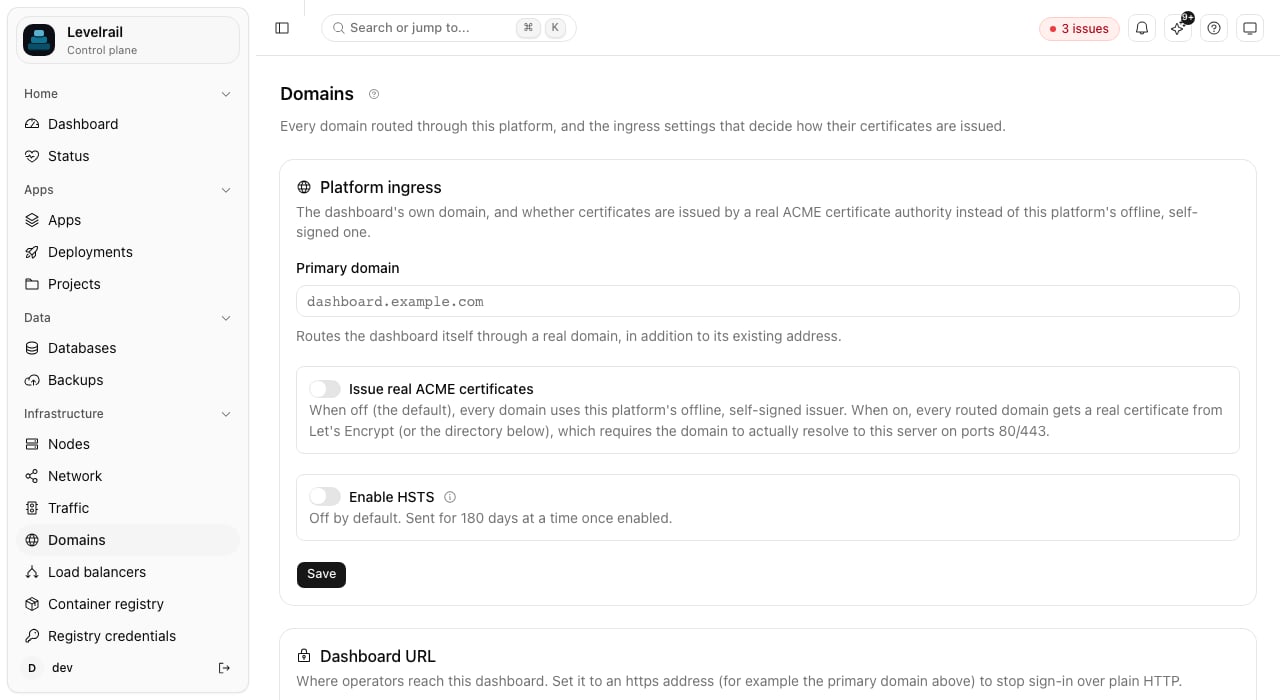
Real ACME issuance is built in. Enable it with the Issue real ACME certificates toggle on the Domains page, or:GET/PUT /api/v1/settings/ingress. An account email is required, and a directory URL is optional.
HSTS (HTTP Strict Transport Security)
Turn on Enable HSTS on the Domains page (orlevelrail-cli settings ingress set --hsts-enabled) to send Strict-Transport-Security on every https response, including the dashboard’s HTML page, no restart required. It is never sent over plain HTTP. HSTS defaults to off on purpose.
APP_ENABLE_HSTS=true still works. The two are additive: HSTS is sent if either the dashboard toggle or the environment variable is on, so upgrading never turns HSTS off for a deployment that already had it on.
Bring your own certificate
For domains ACME can’t reach (internal-only hosts, externally issued wildcards, or certificates provisioned before DNS cuts over), upload a certificate and key. Caddy loads it directly and skips automatic issuance for that host.PUT /api/v1/apps/{name}/domains/{domain}/tls-cert, and the dashboard has a per-domain TLS control.
Wildcard domains: DNS-01 providers
Wildcard domains like*.example.com need ACME’s DNS-01 challenge (HTTP-01 cannot validate wildcards). DNS-01 works by creating a short-lived TXT record at your DNS provider, so you must grant API access.
Two providers are supported, configured platform-wide on the Domains page or with the CLI. Only one is active per reconcile pass, and Cloudflare wins if both are enabled.
- Cloudflare
- Route53
Use an API token scoped to The API is
Zone:DNS:Edit and Zone:Zone:Read for your zone, never the global API key.GET/PUT/DELETE /api/v1/settings/cloudflare-dns.Domains without an app
A domain does not have to belong to an app. A standalone domain proxies to a port on this server, an address on your network, an external URL, another app’s port or a container, and gets every per-domain feature on this page. In the dashboard, Add domain offers Proxy to a port or URL next to Route to an app; from the CLI:Firewall: ports 80 and 443
Public traffic and ACME’s HTTP-01 challenge need your server reachable from the internet on ports 80 and 443. Port 80 is also how Let’s Encrypt validates domain ownership. If it is blocked, issuance fails even if everything else is configured correctly. Common blockers, all of which look fine from the server itself: a cloud provider firewall or security group, a home router with no port forwarding, andufw in default-deny state.
Automatic firewall setup
install.sh has an opt-in flag:
80/tcp, 443/tcp and 443/udp (HTTP/3), and enables ufw if it is not already active. If ufw was already active, it only adds the rules. Without the flag, open these ports yourself via your cloud firewall, ufw or iptables.
Running on non-default ports
If port 443 (or 80) is already taken on the host, most often by a second control-plane instance, set the ingress listen addresses instead of fighting over the defaults:APP_INGRESS_HTTPS_ADDR(default:443): the embedded Caddy ingress’s HTTPS listener.APP_INGRESS_HTTP_ADDR(default:80): kept off port 80 only when real ACME (not the default self-signed issuer) is enabled for a non-wildcard domain, since that is the one path that can otherwise reach for a literal port 80 for its HTTP-01 challenge.
GET /api/v1/system/doctor’s port checks follow whatever you set here, so a second instance on :8443/:8080 reports those ports as owned and available, not :443/:80.
Opt-in WAF and rate limiting
Both are Caddy modules registered at build time, not separate containers. They are off by default and configured per domain.- WAF: OWASP Coraza with the stock OWASP Core Rule Set (
github.com/corazawaf/coraza-caddy/v2) - Rate limiting: Caddy’s
rate_limitmodule (github.com/mholt/caddy-ratelimit)
WAF modes: detect or block
Rate limiting parameters
Rate limiting is independent of WAF and configured per client IP with two numbers:
Clients exceeding either limit get a 429 response. Set burst equal to or below requests/sec for a strict, non-bursting cap.
Configuration
- Dashboard
- CLI
- API
Each domain’s row in an app’s Domains tab has an Add WAF / rate limit control.
Not included in v1
Not included in v1
- No UI for custom CRS exclusion or override rules.
- No per-path or per-route rate-limit scoping (whole-domain only).
- No separate WAF/rate-limit event log (use Caddy’s access log).
Domain redirects
For force HTTPS, www and apex presets, aliases and other per-domain controls (headers, path forwarders, country rules, caching), see Domain traffic controls. A redirect sends a domain to a different URL instead of proxying to a container, for examplewww.example.com to example.com, or old-domain.com to https://newapp.example.com/promo during a migration. It uses Caddy’s static_response handler with a Location header, so there is no new container or infrastructure.
Configuration
- Dashboard
- CLI
- API
Each domain’s row in an app’s Domains tab has an Add redirect control.
Redirect status codes
Requirements
- The domain must already be one of the app’s domains. Add it first with
levelrail-cli apps domains add <app> www.example.com. - Target must be an absolute URL, such as
https://example.com. Bare hostnames, relative paths, and non-HTTP(S) schemes are rejected. - A target that is only an origin keeps the request path and query, so
www.example.com/pricing?plan=progoes tohttps://example.com/pricing?plan=pro. A target with its own path, query, or fragment always redirects to exactly that URL.
If a domain has both a redirect and maintenance mode configured, maintenance mode wins and the domain serves the maintenance response. Clear maintenance mode to let a configured redirect take effect.
Custom error pages
Replace Caddy’s bare default error text, or whatever the backend returned, with your own HTML for a domain. Four status codes are supported:404, 500, 502 and 503. The original status code is kept and only the body changes. It covers both a status the backend actually returns and a proxy failure such as an unreachable container, which Caddy turns into its own 502 or 504.
- A domain can have several mappings at once, for example a custom
404and a separate503“temporarily down” page. - The HTML is served byte for byte: no templating, no variables, and no per-app default separate from the per-domain mapping.
- Dashboard
- CLI
- API
Each domain’s row in an app’s Domains tab has an Add error page control. Pick a status code and paste in HTML. There is no live preview.
Hide a domain from search engines
Consoles, staging sites and internal tools should not show up in search results. Per domain, turn on Hide from search engines (domain editor), runlevelrail-cli domains search-visibility <app> <domain> --hide, or PUT /api/v1/apps/{name}/domains/{domain}/search-visibility with {"hidden": true}. The ingress then:
- sends
X-Robots-Tag: noindex, nofollow, noarchive, nosnippeton every response, overriding the app’s own value; - answers
/robots.txtitself with a disallow-all file, even if the app serves its own.
This is a request that well-behaved crawlers honour. It is not access control: use basic auth or an auth gate to keep people out. It takes effect on the next ingress reconcile pass, and a crawler that already indexed the page drops it on its next visit. Domains are open to search engines by default.
Auth gate (forward auth)
An auth gate puts your own auth service (Authelia, oauth2-proxy, a small app of your own) in front of a domain. Before a request reaches your app, the ingress sends aGET to the auth service with the original request’s Cookie and Authorization headers plus X-Forwarded-Method, X-Forwarded-Uri, X-Forwarded-Host, X-Forwarded-Proto and X-Forwarded-For. The request body is never sent.
- 2xx: the request goes on to your app, carrying only the response headers you listed in copy headers.
- Anything else: the auth service’s status, headers (including
LocationandSet-Cookie) and body go straight back to the visitor. A302to your login page just works. - Auth service down or too slow: the visitor gets a
502(unreachable) or504(timed out). The request never reaches your app.
Worked example
Your auth service answersGET /check. For a signed-in visitor it returns 200 with X-User, X-Email and X-Name; otherwise it returns 302 to its login page.
X-User: admin themselves gets that header removed before the check. If the visitor is signed in, the app receives the auth service’s X-User, X-Email and X-Name.
Settings
- Dashboard
- CLI
- API
Each domain’s row in an app’s Domains tab has an Add an auth gate control next to basic auth.
Built-in sign-in (SSO for apps)
Instead of running your own auth service, set the provider to Levelrail sign-in (builtin). Visitors sign in with their account on this installation, through the same sign-in page as the dashboard (passwords, passkeys, two-factor), and only the users, teams and roles you allow get through. Your app receives X-User and X-Email (the email) and X-Name (the display name). Visitor-sent copies of those headers are always removed first.
It needs the platform primary domain (Settings > Ingress), because visitors are sent to the dashboard to sign in. Signing in there with an OAuth provider (Google, GitHub) ends on the dashboard; open the app link again and it goes straight through.
- Denied users see a plain 403 page that names the account they are signed in with, never a redirect loop. Fetch and XHR requests (
Accept: application/jsonorX-Requested-With) get a401JSON body with alogin_urlinstead of a redirect. - A guest, meaning a user whose role only sees granted environments, also needs a grant for the app’s environment. Standalone domains have no environment, so they are closed to such users.
- Plain http apps cannot use the built-in provider unless
APP_GATE_ALLOW_HTTP=true; the session cookie is then notSecure.
Sign-in flow, step by step
Sign-in flow, step by step
Access log
Every decision is recorded with time, domain, user, decision, reason and client IP:allowed, denied, login_redirect, token_issued, token_exchange and session_revoked. Identical events in the same minute are stored as one row with a count, so busy apps do not grow the database per request. Read it on the domain’s auth gate card (Show access log), with levelrail-cli domains auth-gate log, or at GET /api/v1/apps/{name}/domains/{domain}/auth-gate/events?since=24h (needs read:sensitive).
Edge limits, client IPs and failover
Every proxied domain gets the same edge policy, on by default. All of it is tuned by environment variables on the control plane (set them in the systemd unit or compose file);APP_INGRESS_HARDENING=false restores the bare Caddy config. levelrail-cli doctor shows the active policy in its ingress_edge check.
There is no per-IP connection limit: Caddy has none built in. Put a firewall rule or the WAF rate limit in front if you need one.
Real client IPs behind a CDN or proxy
By default the app sees the address that connected to Levelrail, and anyX-Forwarded-For the client sent is discarded (so it cannot be spoofed). If Levelrail itself sits behind Cloudflare, a load balancer or another proxy, tell it which peers to trust:
private_ranges expands to the RFC 1918 and loopback ranges. For a trusted peer, the client address is read from the header (right to left for X-Forwarded-For, so a forged left-most entry is ignored), appended to X-Forwarded-For, and sent to the app as X-Real-IP. Every app receives X-Real-IP, trusted proxy or not.
Running behind a TLS proxy
If the proxy is Traefik (Coolify’s included),levelrail-cli proxy setup turns this mode on and writes one route per domain into Traefik’s watched directory, kept in step with every domain you add or remove. See Run behind an existing proxy. The domain check then says the proxy handles certificates instead of asking for ports 80 and 443 on this server.
If Traefik, nginx or Caddy owns 80 and 443 and forwards to this ingress, set the Public HTTPS port (public_https_port, usually 443) so generated links omit the ingress listen port, and turn on tls_terminated_upstream when the proxy also holds the certificates so this instance never runs ACME. Details and a Traefik example: Run behind an existing proxy. An ACME failure notice for non-standard ingress ports does not apply in this mode, because the proxy handles HTTPS.
When a backend is down
A request that cannot reach its container is retried forAPP_INGRESS_RETRY_WINDOW. With two or more replicas a refused connection moves to another replica at once and the failed one is skipped for APP_INGRESS_PASSIVE_FAIL_DURATION, so a killed replica costs no requests. A single-replica app, or a pool with no live replica, answers a styled 503 with Retry-After and a page that reloads itself, not Caddy’s bare 502. A custom error page for the domain replaces it.
A domain whose app was routed in the last APP_INGRESS_HOLD_WINDOW (default 10m) but has no ready container right now (a recreate deploy, a crash, a restart) keeps its route and its certificate and answers the same 503 instead of a TLS error or a dead connection. A domain that has never been routed since the control plane started is not held, so adding a domain before the first deploy does not start certificate issuance early.
Surviving a control plane restart
The embedded Caddy lives in the control plane process, so a restart would close ports 80 and 443 for its length. New installs close that gap by default: systemd owns the listening sockets.upgrade with the variable unset keeps whichever mode the install is already in. Docker Compose deployments are unchanged: they do not use systemd and bind the ports themselves.
The installer writes levelrail-http.socket and levelrail-https.socket. The control plane detects the inherited sockets (LISTEN_FDS, named http and https) on its own; no extra setting is needed. While the process is down the kernel queues new connections, and the new process serves them when it is up, so visitors see a slower response instead of a refused connection. Measured numbers are on the resilience page, and the decision is in ADR 025.
Socket activation trade-offs
Socket activation trade-offs
- HTTP/3 and ACME HTTP-01 are not available in this mode (TLS-ALPN-01 on 443 and DNS-01 still issue certificates).
- The sockets stay open while the service is stopped on purpose.
Raw TCP streams: forwarding a non-HTTP port
Domains, WAF, redirects and error pages are all for HTTP(S). Some services are not HTTP: a Postgres instance, an SSH server, a game server. A stream forwards a host port to one of an app’s container ports byte for byte, with no Host-header routing and no protocol awareness.GET/POST/DELETE /api/v1/apps/{name}/streams.
Streams use the same embedded Caddy through its layer4 app, not a second proxy.
Scope: TCP only, one stream per forward, no access lists, and no TLS termination on the stream (if the backend speaks TLS, that is between the client and the backend). Multi-app and load-balanced streams are not supported.
Traffic: routing status for every domain at a glance
Infrastructure > Traffic in the dashboard (GET /api/v1/network/proxy, read ability) is a flat, one-row-per-domain table: which app a domain routes to, which node that app actually runs on, whether this control plane’s own embedded ingress can reach it, its port, and TLS status and issuer.
It exists to catch one failure that is otherwise invisible. The embedded Caddy ingress reaches an app on another node only over the WireGuard mesh. If that path is down, the app’s container can be perfectly healthy while its domain silently never routes. When the path is healthy the domain shows Reachable. See Multi-node: Routing to apps on remote nodes for how the mesh bind works.
A domain in the broken state shows an Unreachable badge with the reason (with a banner at the top of the page when any exist; levelrail-cli nodes traffic prints the same reason). Each unreachable row carries a Move button straight to the move-with-volumes flow described in Moving an app with its volumes, or run the fix directly:
Reachable links, health summary and the domain doctor
Domain doctor
When a domain does not work, start here.POST /api/v1/apps/{name}/domains/{domain}/doctor (read ability) runs ordered checks and returns one fix per problem:
state (pass, warn, fail, skipped, unavailable), a tier (1 blocks traffic, 2 blocks the certificate, 3 breaks soon, 4 hygiene) and, when it is not passing, a fix with a summary and at most one action (request with the API call, link, or copy with the exact record).
Every check the doctor runs
Every check the doctor runs
Example response:
APP_PUBLIC_HOST or the detected public IPs, never the request’s Host header), and it always dials that address, never an address taken from DNS. When the domain points elsewhere it runs the DNS checks only, sets probed to false and explains why in probe_note. The whole run is bounded by APP_DOMAIN_DOCTOR_TIMEOUT (default 20s) and each probe by APP_DOMAIN_DOCTOR_PROBE_TIMEOUT (default 4s).
Probes run from this server, so a NAT that does not hairpin can make a port check warn even when visitors connect fine.
reachable_url: the link that actually works
GET /api/v1/domains returns reachable_url on every row, and GET /api/v1/apps/{name}/environment-domains returns a reachability map keyed by domain. The URL is https://<domain>, with the public HTTPS port only when one is configured (or 443 when TLS is terminated by a proxy in front). It is present only when the app is running and the domain is routable. Otherwise the field is omitted and reachable_reason says why:
The dashboard builds its Open site button from this field only, so it never shows a
:8443 or sslip.io link that does not answer. levelrail-cli domains list prints it in the URL column.
Health summary
GET /api/v1/traffic/summary (read ability) feeds the sidebar badge and the health strip. levelrail-cli domains summary prints the same counts. It never does network I/O: it reads stored state and the last DNS check result for each domain, and is cached for APP_TRAFFIC_SUMMARY_CACHE_TTL (default 5s).
- Domains are counted as
live,propagating,waiting,needs_attention,not_set_up,pausedorunknown(a domain never checked since the control plane started isunknown). - Certificates are counted when expiring within
APP_TRAFFIC_CERT_EXPIRY_DAYSdays (default 30), expired, or failing to renew. - Zone delegation and proxy route errors are listed in
unavailableuntil those features report them.
Example response
Example response
Activity
GET /api/v1/domains/{domain}/activity (read ability, limited to domains whose app you can see) returns the domain’s recent changes from the audit log plus certificate issuance, renewals and the CA’s last failure, newest first, as {events: [{id, at, kind, title, detail, failed, action, actor: {type, name}, object: {type, id, href}}], next_cursor}. Pass next_cursor back as ?before= for the next page; ?limit= and ?actions= work as on the audit log. levelrail-cli domains activity <domain> prints it.
Next steps
Domain traffic controls
Headers, path forwarders, country rules, caching and redirects per domain.
ACME verification runbook
Issue and verify a real Let’s Encrypt certificate.
Load balancing
Balance traffic across an app’s replicas.
App spec reference
Configure domains in
app.yaml.Multi-node
How ingress reaches apps on worker nodes.
Standalone domains
Proxy a domain to a port or URL with no app behind it.