> ## Documentation Index
> Fetch the complete documentation index at: https://docs.levelrail.com/llms.txt
> Use this file to discover all available pages before exploring further.
# Self-host Vaultwarden on your own server
> Self-host Vaultwarden, a Bitwarden-compatible password manager, with one Levelrail command, then add a domain and back up its data.

Vaultwarden is a lightweight server that works with the official Bitwarden apps and browser extensions. In this tutorial you will deploy it from Levelrail's [template catalog](/templates-and-registry) in one command, check that it is alive, put it on a domain, and back up its data. The same steps work for the rest of the catalog.
## Before you start
* A running Levelrail instance and the CLI logged in to it ([installing](/installing)).
* A domain you can point at the server. Bitwarden clients require HTTPS, so a plain `host:port` address is only good for a first check.
```bash theme={"dark"}
levelrail-cli templates list | grep -i vaultwarden
```
```text theme={"dark"}
vaultwarden Vaultwarden Security ~0 GiB - A lightweight, self-hosted password manager server compatible with the Bitwarden clients.
```
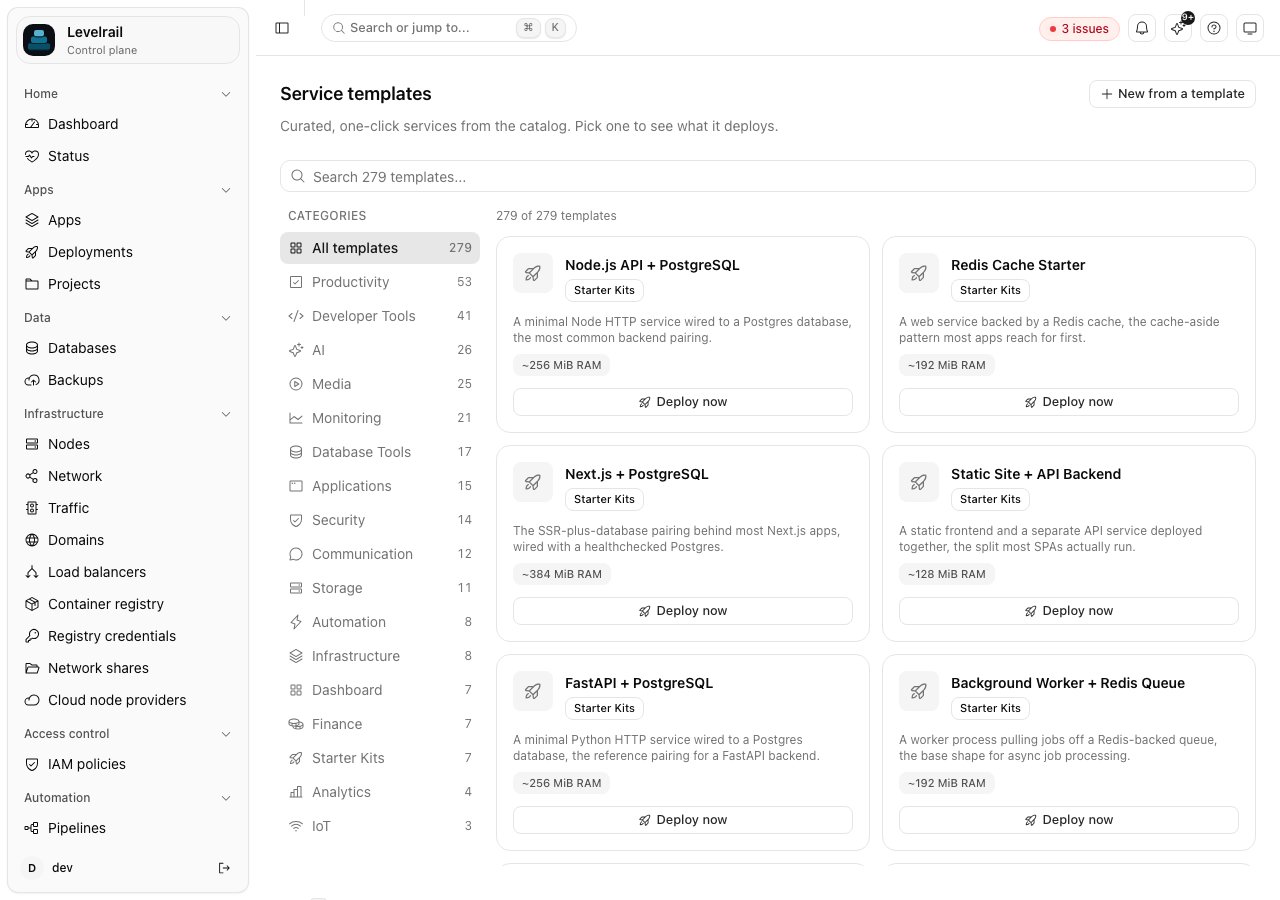 The dashboard's **Templates** page lists the same catalog with search and categories. To see exactly what a template deploys before you run it:
```bash theme={"dark"}
levelrail-cli templates get vaultwarden
```
It prints the Compose file: the image, a persistent `vaultwarden_data` volume, a health check, and an `ADMIN_TOKEN` that Levelrail generates for you.
```bash theme={"dark"}
levelrail-cli templates deploy vaultwarden
```
```text theme={"dark"}
app_id: vaultwarden
deployed 1 service(s):
vaultwarden-vaultwarden vaultwarden/server:1.32.1
```
A template deploys as a project, and each service in it becomes an app named `-`. Here the app is `vaultwarden-vaultwarden`. Use that name in every command from now on. `levelrail-cli apps list` shows it.
```bash theme={"dark"}
levelrail-cli apps wait vaultwarden-vaultwarden
levelrail-cli apps network vaultwarden-vaultwarden
```
```text theme={"dark"}
container port: 80
host port: 62531
running: true
```
Call Vaultwarden's own health endpoint on that port:
```bash theme={"dark"}
curl -i http://127.0.0.1:62531/alive
```
A `200` response with a timestamp means it is up.
```bash theme={"dark"}
levelrail-cli apps domains add vaultwarden-vaultwarden vault.example.com
```
Create an `A` record for `vault.example.com` pointing at your server, then check it with `levelrail-cli domains check vaultwarden-vaultwarden vault.example.com`.
Every routed domain gets a TLS certificate. By default it is self-signed, which Bitwarden clients reject. For clients to connect you need a certificate they trust: either enable Let's Encrypt under **Settings, Domains**, or upload your own. See [Domains and ingress](/domains-and-ingress#tls-whats-actually-shipped-today) and the [ACME verification runbook](/acme-verification-runbook) if issuance fails.
Levelrail generated the admin token when it deployed. Read it from the running container:
```bash theme={"dark"}
levelrail-cli apps exec vaultwarden-vaultwarden -- printenv ADMIN_TOKEN
```
You will need it for the `/admin` page. Treat it like a password. Anyone with this token can administer your instance.
## Back up the data
Vaultwarden keeps everything, including your vault, in the `vaultwarden_data` volume. Losing that volume loses every password, so back it up before you rely on it. The health score warns about exactly this:
```bash theme={"dark"}
levelrail-cli apps health-score vaultwarden-vaultwarden
```
```text theme={"dark"}
Deploy health pass last 1 deploy attempt(s) all succeeded
Security pass no public domains configured
Resilience warn no backup schedule configured for volume(s): ...vaultwarden_data
Observability fail no alert rules configured for this app
```
Connect a bucket by following [Back up Postgres to S3](/tutorials/back-up-postgres-to-s3), then back up the volume:
```bash theme={"dark"}
levelrail-cli app-volume-backups trigger vaultwarden-vaultwarden vaultwarden_data --target bkt_Ra-kILVUyJaw
levelrail-cli app-volume-backups list vaultwarden-vaultwarden vaultwarden_data
```
```text theme={"dark"}
ID TARGET STATUS SIZE STARTED FINISHED
bkh_URES0h4165gg bkt_Ra-kILVUyJaw succeeded 290304 2026-10-05T02:34:24Z 2026-10-05T02:34:25Z
```
To restore, run `levelrail-cli app-volume-backups restore vaultwarden-vaultwarden vaultwarden_data --backup --confirm vaultwarden-vaultwarden/vaultwarden_data`. Restoring replaces the volume's contents, which is why the confirmation is the full `app/volume` name.
## Update it later
Change the image tag and redeploy:
```bash theme={"dark"}
levelrail-cli apps deploy vaultwarden-vaultwarden --image vaultwarden/server:
levelrail-cli apps wait vaultwarden-vaultwarden
```
If the new version misbehaves, roll back with `levelrail-cli apps deploys rollback-to`. See [Deploy a Docker app](/tutorials/deploy-a-docker-app).
## Clean up
```bash theme={"dark"}
levelrail-cli apps delete vaultwarden-vaultwarden
```
## Where to go next
* [Template catalog](/template-catalog): every one-click service, by category.
* [Templates and registry](/templates-and-registry): how templates work and how to save your own.
* [Debug a slow or failing app with built-in logs and metrics](/tutorials/debug-an-app-with-logs-and-metrics).
This documentation is built and hosted on [Mintlify](https://mintlify.com), a developer documentation platform.
The dashboard's **Templates** page lists the same catalog with search and categories. To see exactly what a template deploys before you run it:
```bash theme={"dark"}
levelrail-cli templates get vaultwarden
```
It prints the Compose file: the image, a persistent `vaultwarden_data` volume, a health check, and an `ADMIN_TOKEN` that Levelrail generates for you.
```bash theme={"dark"}
levelrail-cli templates deploy vaultwarden
```
```text theme={"dark"}
app_id: vaultwarden
deployed 1 service(s):
vaultwarden-vaultwarden vaultwarden/server:1.32.1
```
A template deploys as a project, and each service in it becomes an app named `-`. Here the app is `vaultwarden-vaultwarden`. Use that name in every command from now on. `levelrail-cli apps list` shows it.
```bash theme={"dark"}
levelrail-cli apps wait vaultwarden-vaultwarden
levelrail-cli apps network vaultwarden-vaultwarden
```
```text theme={"dark"}
container port: 80
host port: 62531
running: true
```
Call Vaultwarden's own health endpoint on that port:
```bash theme={"dark"}
curl -i http://127.0.0.1:62531/alive
```
A `200` response with a timestamp means it is up.
```bash theme={"dark"}
levelrail-cli apps domains add vaultwarden-vaultwarden vault.example.com
```
Create an `A` record for `vault.example.com` pointing at your server, then check it with `levelrail-cli domains check vaultwarden-vaultwarden vault.example.com`.
Every routed domain gets a TLS certificate. By default it is self-signed, which Bitwarden clients reject. For clients to connect you need a certificate they trust: either enable Let's Encrypt under **Settings, Domains**, or upload your own. See [Domains and ingress](/domains-and-ingress#tls-whats-actually-shipped-today) and the [ACME verification runbook](/acme-verification-runbook) if issuance fails.
Levelrail generated the admin token when it deployed. Read it from the running container:
```bash theme={"dark"}
levelrail-cli apps exec vaultwarden-vaultwarden -- printenv ADMIN_TOKEN
```
You will need it for the `/admin` page. Treat it like a password. Anyone with this token can administer your instance.
## Back up the data
Vaultwarden keeps everything, including your vault, in the `vaultwarden_data` volume. Losing that volume loses every password, so back it up before you rely on it. The health score warns about exactly this:
```bash theme={"dark"}
levelrail-cli apps health-score vaultwarden-vaultwarden
```
```text theme={"dark"}
Deploy health pass last 1 deploy attempt(s) all succeeded
Security pass no public domains configured
Resilience warn no backup schedule configured for volume(s): ...vaultwarden_data
Observability fail no alert rules configured for this app
```
Connect a bucket by following [Back up Postgres to S3](/tutorials/back-up-postgres-to-s3), then back up the volume:
```bash theme={"dark"}
levelrail-cli app-volume-backups trigger vaultwarden-vaultwarden vaultwarden_data --target bkt_Ra-kILVUyJaw
levelrail-cli app-volume-backups list vaultwarden-vaultwarden vaultwarden_data
```
```text theme={"dark"}
ID TARGET STATUS SIZE STARTED FINISHED
bkh_URES0h4165gg bkt_Ra-kILVUyJaw succeeded 290304 2026-10-05T02:34:24Z 2026-10-05T02:34:25Z
```
To restore, run `levelrail-cli app-volume-backups restore vaultwarden-vaultwarden vaultwarden_data --backup --confirm vaultwarden-vaultwarden/vaultwarden_data`. Restoring replaces the volume's contents, which is why the confirmation is the full `app/volume` name.
## Update it later
Change the image tag and redeploy:
```bash theme={"dark"}
levelrail-cli apps deploy vaultwarden-vaultwarden --image vaultwarden/server:
levelrail-cli apps wait vaultwarden-vaultwarden
```
If the new version misbehaves, roll back with `levelrail-cli apps deploys rollback-to`. See [Deploy a Docker app](/tutorials/deploy-a-docker-app).
## Clean up
```bash theme={"dark"}
levelrail-cli apps delete vaultwarden-vaultwarden
```
## Where to go next
* [Template catalog](/template-catalog): every one-click service, by category.
* [Templates and registry](/templates-and-registry): how templates work and how to save your own.
* [Debug a slow or failing app with built-in logs and metrics](/tutorials/debug-an-app-with-logs-and-metrics).
This documentation is built and hosted on [Mintlify](https://mintlify.com), a developer documentation platform.