> ## Documentation Index
> Fetch the complete documentation index at: https://docs.levelrail.com/llms.txt
> Use this file to discover all available pages before exploring further.
# Connect an app to a managed Postgres database
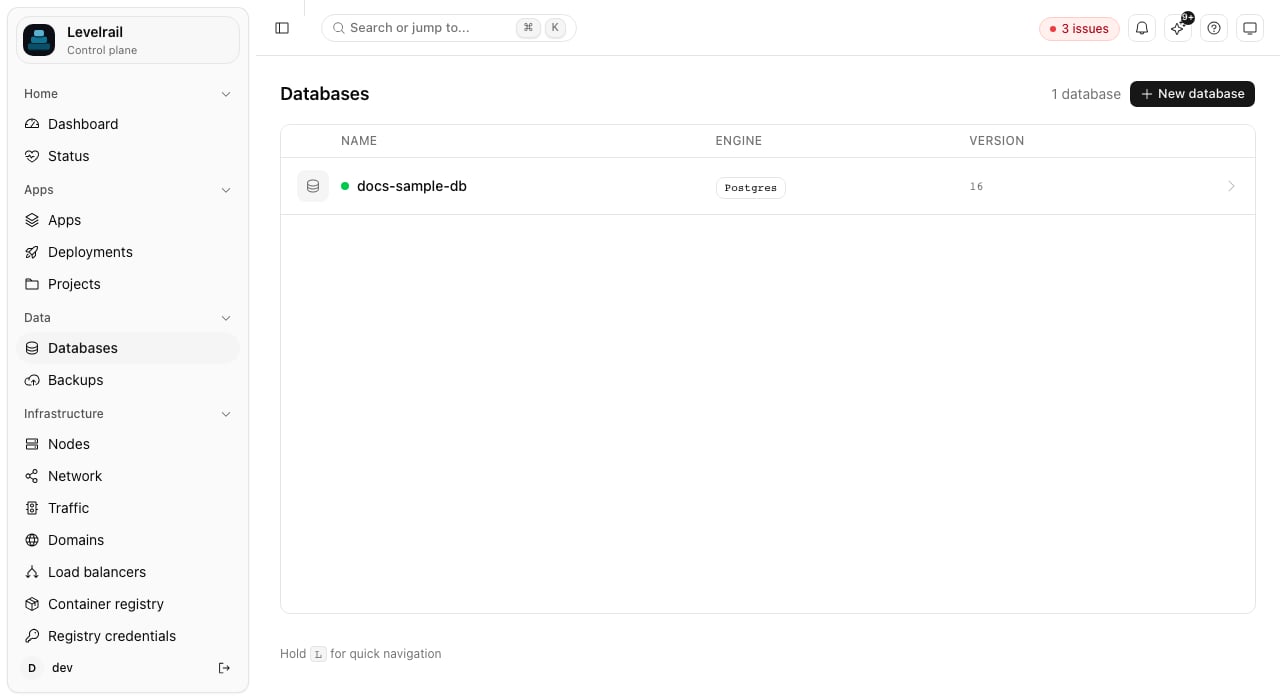
> Create a managed Postgres database on your own server, connect an app with one command, and confirm the connection string reaches the container.

By the end of this tutorial you will have a Postgres database running next to your app, a connection string injected into the app as an environment variable, and a check that the app actually sees it. No password handling, no copy and paste of credentials.
## Before you start
* A running Levelrail instance and the CLI logged in to it ([installing](/installing)).
* An app to connect. This tutorial reuses the `hello` app from [Deploy a Docker app](/tutorials/deploy-a-docker-app). Any app works.
```bash theme={"dark"}
levelrail-cli databases create --name main-db --engine postgres --version 16
```
```text theme={"dark"}
database "main-db" created
name: main-db
engine: postgres
version: 16
tls: no
```
Postgres is one of eight engines on the same registry (Redis, MySQL, MongoDB, MariaDB, KeyDB, Dragonfly, and ClickHouse are the others), so the rest of this tutorial works with a different `--engine` too. Check that it came up:
```bash theme={"dark"}
levelrail-cli databases status main-db
```
```text theme={"dark"}
TYPE STATUS REASON MESSAGE LAST TRANSITION
Ready True AlreadyRunning 2026-10-05T02:21:40Z
```
The first start pulls the image, so allow a minute on a fresh server.
 ```bash theme={"dark"}
levelrail-cli apps connect hello main-db
```
```text theme={"dark"}
env_var: MAIN_DB_DATABASE_URL
database_name: main-db
field: url
host: db-main-db (mesh_dns=false cross_node=false)
```
Levelrail created a variable named `MAIN_DB_DATABASE_URL` holding the full connection string. List an app's connections any time:
```bash theme={"dark"}
levelrail-cli apps connections list hello
```
```text theme={"dark"}
ENV_VAR DATABASE FIELD HOST MESH_DNS CROSS_NODE
MAIN_DB_DATABASE_URL main-db url db-main-db false false
```
You can pick a different field or variable name. For example, `levelrail-cli apps connect hello main-db --field host --env-var DB_HOST` injects only the host. The fields are `url`, `host`, `port`, `username`, `password`, and `database`.
The value is injected when a container is created, so restart the app:
```bash theme={"dark"}
levelrail-cli apps restart hello
levelrail-cli apps status hello
```
Wait until `Ready` shows `True`, then read the variable from inside the running container:
```bash theme={"dark"}
levelrail-cli apps exec hello -- printenv MAIN_DB_DATABASE_URL
```
```text theme={"dark"}
postgres://main-db:@db-main-db:5432/main-db?sslmode=require
```
The app reaches the database by its container name on a private network, with TLS required. Levelrail generated the credentials, so you never choose or paste a password.
If `apps exec` answers `app has no running container`, the new container is still starting. Wait a few seconds and run it again.
## What the reachability badge means
`apps connections list` and the dashboard's **Connections** card show whether the app and database are on the same node, on different nodes with the WireGuard mesh configured, or on different nodes with the mesh off. The last case does not connect. See [Connecting apps to databases](/connecting-apps-to-databases) for the full table.
## Clean up
```bash theme={"dark"}
levelrail-cli apps disconnect hello MAIN_DB_DATABASE_URL
levelrail-cli databases delete main-db
```
Keep the database if you plan to follow the next tutorial.
## Where to go next
* [Back up Postgres to S3 and test the restore](/tutorials/back-up-postgres-to-s3): protect the data you just connected.
* [Managing databases](/managing-databases): resources, public access for a GUI client, and slow query tracking.
* [Network topology](/network-topology): see every app-to-database connection drawn across your servers.
This documentation is built and hosted on [Mintlify](https://mintlify.com), a developer documentation platform.
```bash theme={"dark"}
levelrail-cli apps connect hello main-db
```
```text theme={"dark"}
env_var: MAIN_DB_DATABASE_URL
database_name: main-db
field: url
host: db-main-db (mesh_dns=false cross_node=false)
```
Levelrail created a variable named `MAIN_DB_DATABASE_URL` holding the full connection string. List an app's connections any time:
```bash theme={"dark"}
levelrail-cli apps connections list hello
```
```text theme={"dark"}
ENV_VAR DATABASE FIELD HOST MESH_DNS CROSS_NODE
MAIN_DB_DATABASE_URL main-db url db-main-db false false
```
You can pick a different field or variable name. For example, `levelrail-cli apps connect hello main-db --field host --env-var DB_HOST` injects only the host. The fields are `url`, `host`, `port`, `username`, `password`, and `database`.
The value is injected when a container is created, so restart the app:
```bash theme={"dark"}
levelrail-cli apps restart hello
levelrail-cli apps status hello
```
Wait until `Ready` shows `True`, then read the variable from inside the running container:
```bash theme={"dark"}
levelrail-cli apps exec hello -- printenv MAIN_DB_DATABASE_URL
```
```text theme={"dark"}
postgres://main-db:@db-main-db:5432/main-db?sslmode=require
```
The app reaches the database by its container name on a private network, with TLS required. Levelrail generated the credentials, so you never choose or paste a password.
If `apps exec` answers `app has no running container`, the new container is still starting. Wait a few seconds and run it again.
## What the reachability badge means
`apps connections list` and the dashboard's **Connections** card show whether the app and database are on the same node, on different nodes with the WireGuard mesh configured, or on different nodes with the mesh off. The last case does not connect. See [Connecting apps to databases](/connecting-apps-to-databases) for the full table.
## Clean up
```bash theme={"dark"}
levelrail-cli apps disconnect hello MAIN_DB_DATABASE_URL
levelrail-cli databases delete main-db
```
Keep the database if you plan to follow the next tutorial.
## Where to go next
* [Back up Postgres to S3 and test the restore](/tutorials/back-up-postgres-to-s3): protect the data you just connected.
* [Managing databases](/managing-databases): resources, public access for a GUI client, and slow query tracking.
* [Network topology](/network-topology): see every app-to-database connection drawn across your servers.
This documentation is built and hosted on [Mintlify](https://mintlify.com), a developer documentation platform.