> ## Documentation Index
> Fetch the complete documentation index at: https://docs.levelrail.com/llms.txt
> Use this file to discover all available pages before exploring further.
# Levelrail demo: install, deploy and roll back in minutes
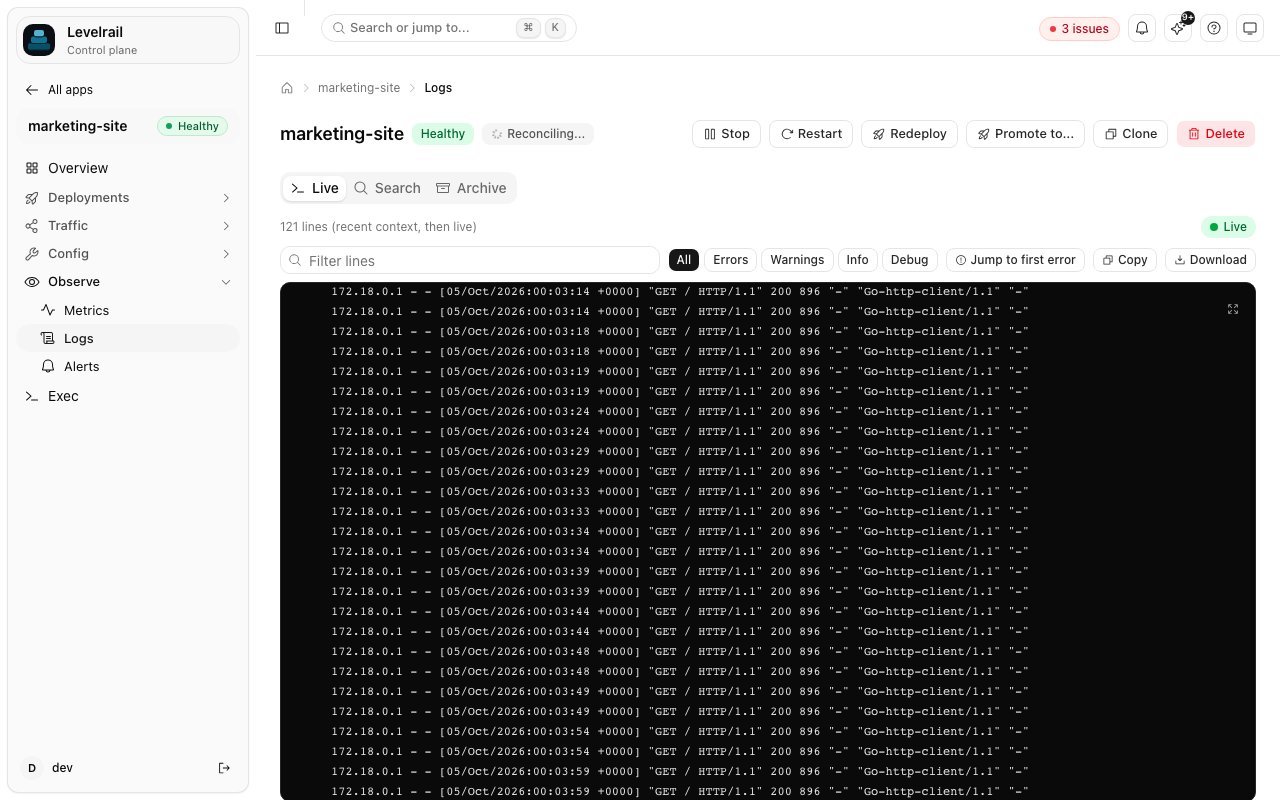
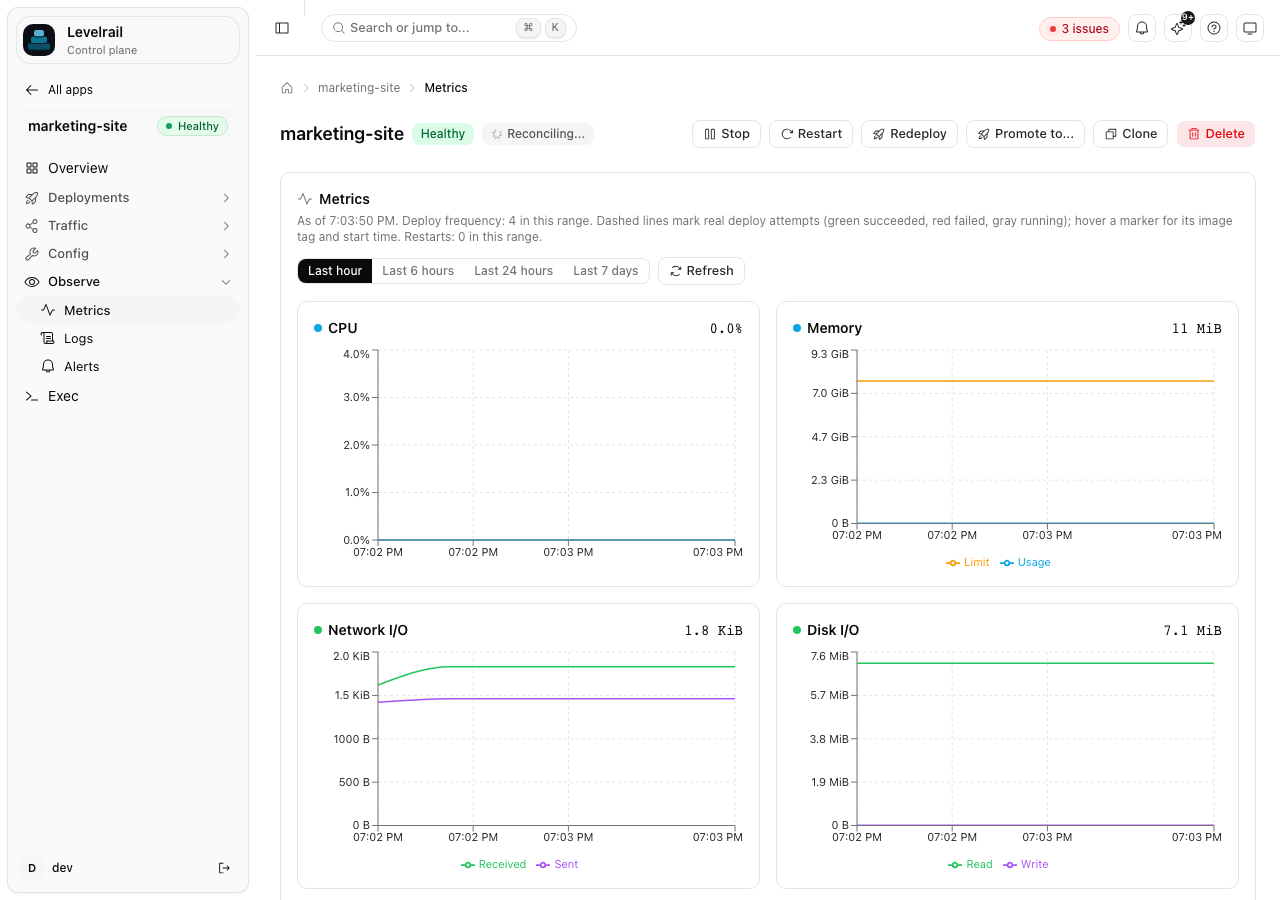
> See Levelrail in action: install script, git push deploys, live logs, metrics with deploy markers, multi-node and one-click rollback.
**See a deploy from install to rollback**
A walkthrough of the dashboard and the CLI, using real screenshots. No sign-up, nothing to host on our side: try the same steps on your own server.
[Run it yourself](/getting-started) | [View on GitHub](https://github.com/glincker/levelrail)
```bash theme={"dark"}
curl -fsSL https://levelrail.com/install.sh | sudo sh
```
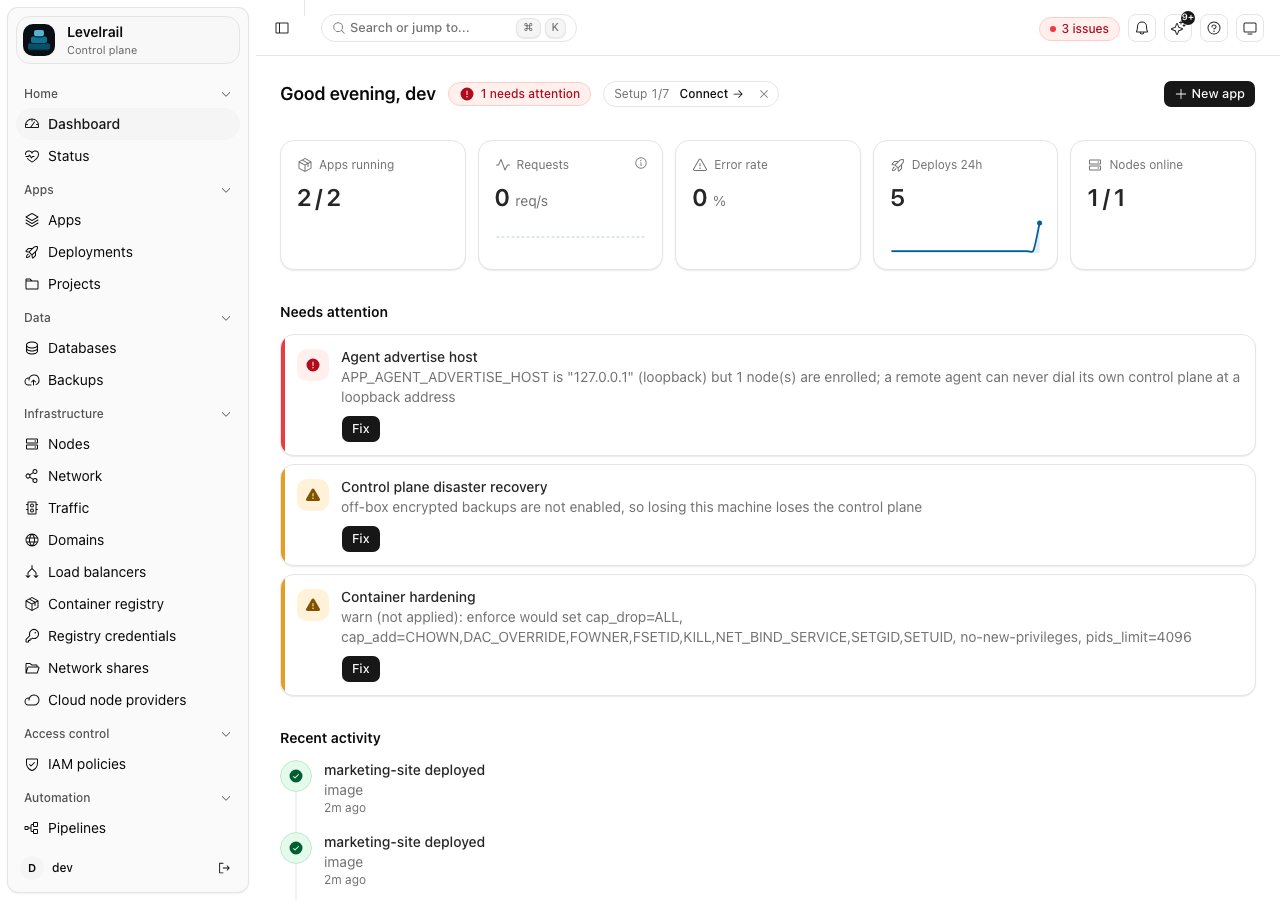 ## Install and first deploy
The install script checks the host, installs Docker if it is missing and starts the control plane as a systemd service. Then you deploy.
```bash title="install, deploy" theme={"dark"}
curl -fsSL https://levelrail.com/install.sh | sudo sh
# checking host: docker, systemd, ports 80/443/8080 free
# installing control plane as a systemd service
# dashboard ready, setup token printed above
levelrail-cli deploy myapp --image registry.example.com/acme/myapp:latest
# readiness probe passed, cutting traffic
# myapp is live over HTTPS
```
## What to try first
Run the install script, then sign in with the setup token it prints.
Connect a repo or point at an image and watch the build and the readiness gate.
Deploy a failing version, see the crashloop detection with the last log lines, then roll back.
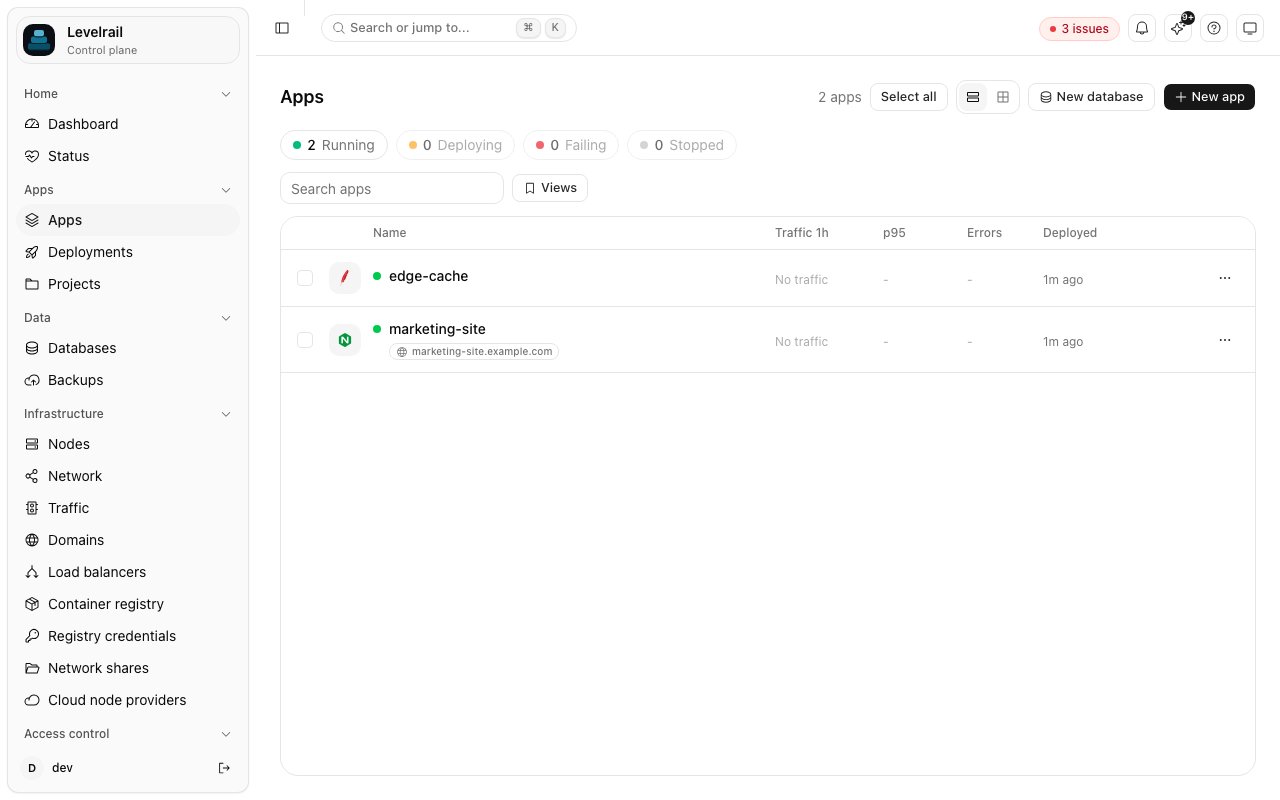
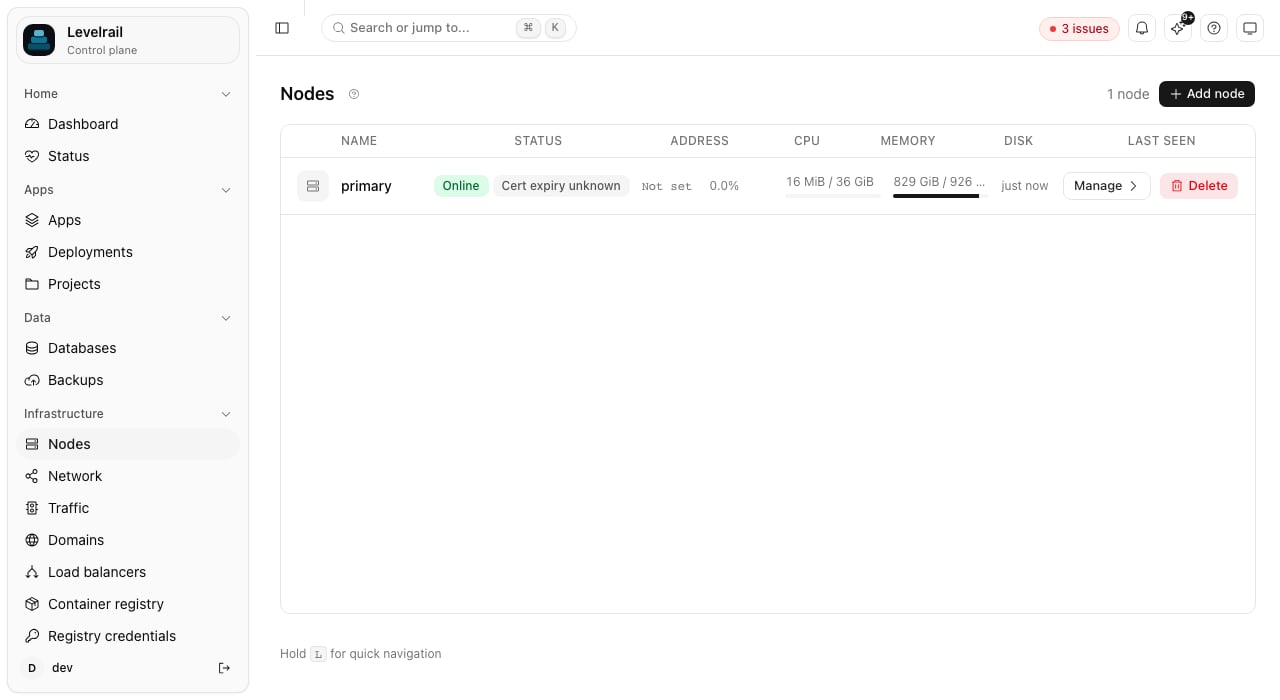
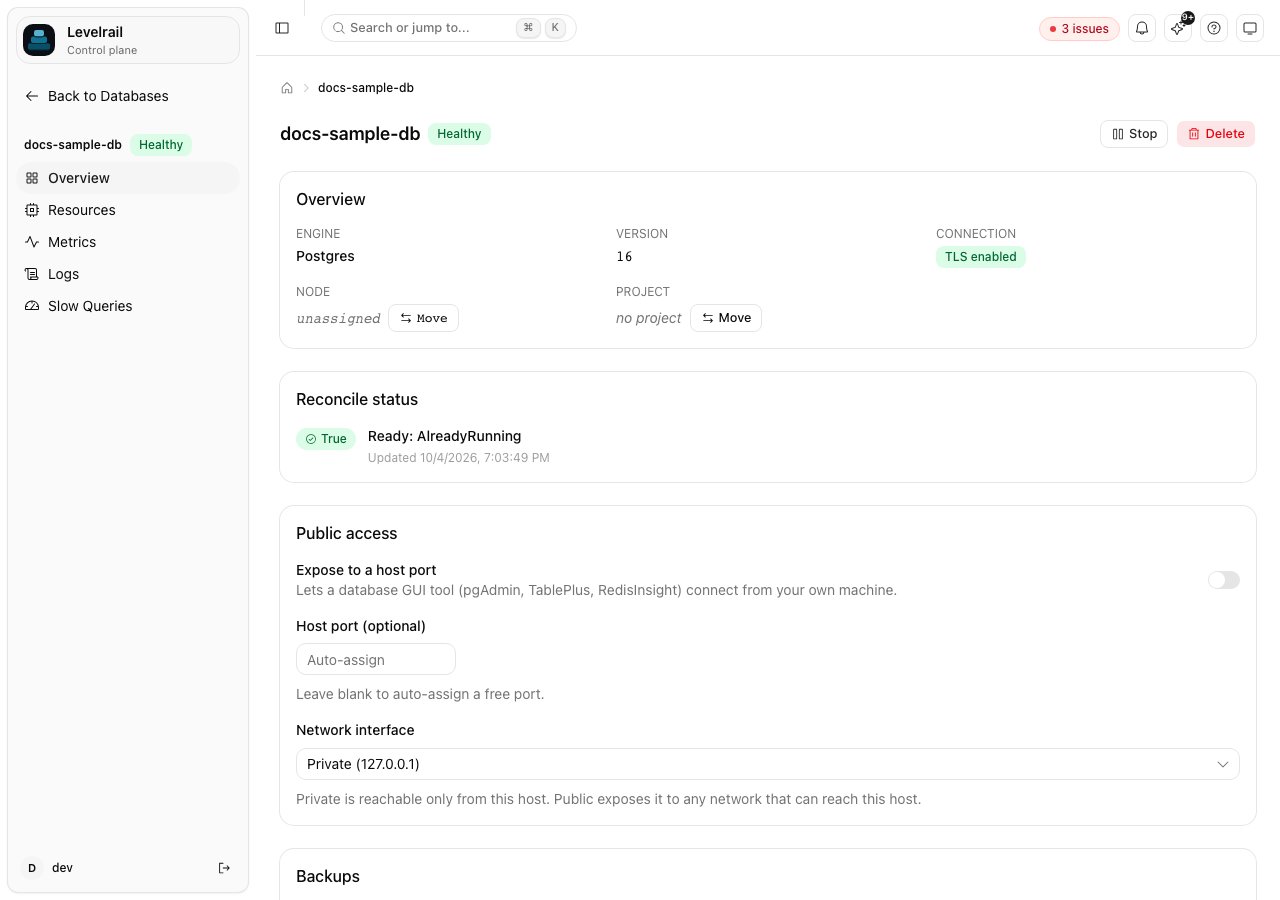
## A tour of the dashboard
## Install and first deploy
The install script checks the host, installs Docker if it is missing and starts the control plane as a systemd service. Then you deploy.
```bash title="install, deploy" theme={"dark"}
curl -fsSL https://levelrail.com/install.sh | sudo sh
# checking host: docker, systemd, ports 80/443/8080 free
# installing control plane as a systemd service
# dashboard ready, setup token printed above
levelrail-cli deploy myapp --image registry.example.com/acme/myapp:latest
# readiness probe passed, cutting traffic
# myapp is live over HTTPS
```
## What to try first
Run the install script, then sign in with the setup token it prints.
Connect a repo or point at an image and watch the build and the readiness gate.
Deploy a failing version, see the crashloop detection with the last log lines, then roll back.
## A tour of the dashboard

 ## Frequently asked questions
No. Levelrail is self-hosted, so the quickest demo is the install script on any Linux box. The screenshots here are from a real dashboard.
The install script handles the host check, Docker and the systemd service in one run. Most of the time is Docker pulling images on a fresh server.
Yes. Install on a spare server. If you use the importer, it is read-only against your existing platform.
## Run the demo on your own server
Ten minutes, one small VPS, nothing to sign up for.
[Run it yourself](/getting-started) | [View on GitHub](https://github.com/glincker/levelrail)
This documentation is built and hosted on [Mintlify](https://mintlify.com), a developer documentation platform.
## Frequently asked questions
No. Levelrail is self-hosted, so the quickest demo is the install script on any Linux box. The screenshots here are from a real dashboard.
The install script handles the host check, Docker and the systemd service in one run. Most of the time is Docker pulling images on a fresh server.
Yes. Install on a spare server. If you use the importer, it is read-only against your existing platform.
## Run the demo on your own server
Ten minutes, one small VPS, nothing to sign up for.
[Run it yourself](/getting-started) | [View on GitHub](https://github.com/glincker/levelrail)
This documentation is built and hosted on [Mintlify](https://mintlify.com), a developer documentation platform.